|
WM Capture –
recording hints – 10102 ======================================================= NEW WM Capture D3D recording (4K movies and video
games captured from your computer screen) ======================================================= Using the Chrome
Canary browser Note: Starting June 2025, the Google Chrome Canary browser cannot be
used for video recording and rerouting on Windows 11. WM Capture version
11.0.0.1 and above enable recording and rerouting compatibility with other
Chromium-based browsers. ========================================================================= Google Chrome Canary browser can be used for recording
instead of your regular browser. Recording with
your usual browser, especially with multiple tabs open, can cause issues. To
record streaming movies, you may also need to disable graphics acceleration. Google Canary
browser provides a better way to record videos from your screen. When using the
Chrome Canary browser, WM Capture can record all videos by utilizing the
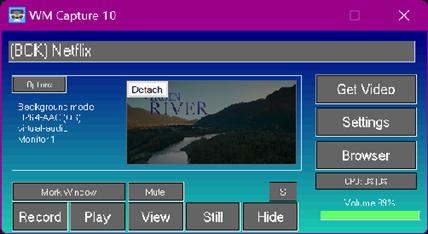
features of Background mode, such
as UHD/4K recording, without disabling video acceleration. Additionally, WM
Capture 10 can reroute video and audio,
allowing for simultaneous recording and playback from different applications
without interference. Step 1 – Download
Canary browser Download Canary
browser from https://www.google.com/intl/en_pk/chrome/canary/. Click Download Chrome Canary, then run ChromeSetup.exe to install. The
process takes only a few minutes. Step 2 – Create
Canary shortcut After
installation, WM Capture shows “WMC
Canary installed. Click OK to create Canary shortcut for recording”. This
creates a dedicated recording shortcut which should
always be used. Right-click the
WMC Canary shortcut, open Properties, and confirm the comment reads “Google
Chrome Canary browser for recording.” If the message above is not shown when Canary installation is
finished, click the Options on WM Capture main screen, then click Google
Chrome Canary browser, Create Canary shortcut. If a Google Canary icon was placed in your taskbar following the
Canary installation or upgrade delete this icon. Step 3 – Open
Canary browser Click the Option on WM Capture main screen then click Google
Chrome Canary browser, Open Canary browser. The option above guarantees that the opened Canary is the Canary
browser you should be using for recording. This browser will not require
disabling the hardware acceleration. The Canary icon on the desktop can also
be used if this is the “Google Chrome Canary browser for recording” created
by WM Capture as shown above. |