|
WM
Capture 10 recording hints 10106 Using
the VB - Audio Virtual Cable NOTE: As of June
2025, WM Capture is unable to activate the Background mode on Windows 11 when
using the Chrome Canary browser. We are working to resolve this issue caused
by Google in an upcoming WM Capture update. Currently, the details below are
applicable only for computers using Windows 10 or when using the Firefox
browser on Windows 11. Because of these restrictions, WM Capture version 11.2.0.1 is the
sole version that permits rerouting of video and audio.
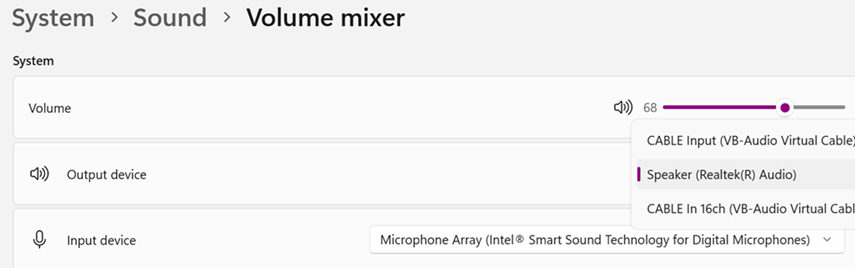
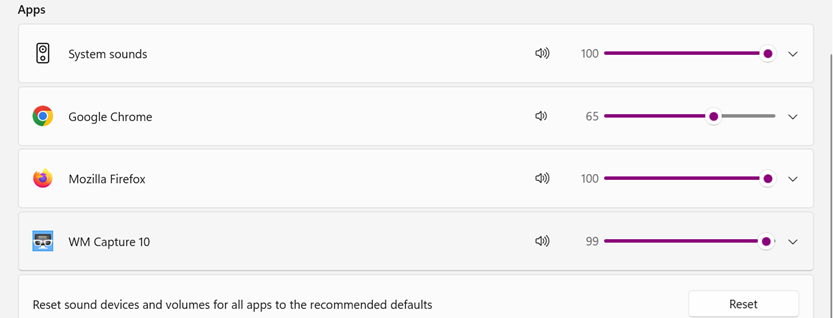
Below is a Windows 11 example showing the Volume
mixer where the Chrome browser is set to output its audio to the System
Default while the Firefox browser
outputs its audio to the VB-Cable port. The set up instructions shown here
are the same for Windows 10. Set
up the VB-Audio Virtual Cable as second audio driver (playback and record) Open vb-audio.com
and/or download the file VBCABLE_Driver_Pack43.zip.
Unzip the downloaded file then follow installation instructions. After
rebooting VB-Cable is installed and ready. Right click the speaker icon on
your taskbar then click Open volume mixer. Note that the VB-Audio may require a donation. You
can select the amount you would like to donate (suggested $10). In the Volume mixer, under System, click
the Output device arrow as shown below. Windows installed audio drivers
including the VB-Cable are shown. Select your Windows default playback device
(usually called Speaker).
Now you begin opening the apps you’ll be using for
playback and record. You should see these apps populating the Volume mixer.
You will need WM Capture and two different browsers (in this example Google
Chrome and Firefox). 1. Open the Chrome browser
and play a video with sound (this tells Windows, Chrome uses audio). Stop
playing video 2. Open WM
Capture in Background mode, click the Volume bar
(optional) (this tells Windows that WM Capture uses audio) 3. Open the
Firefox browser (some browsers need to play a video with sound; play
then stop playing) 4. Right click the
speaker icon on taskbar, click Volume mixer. 5. Click
the arrow under Firefox and select Cable input, then click WM Capture arrow
and select Cable input In the Firefox browser, open the video you want to
record. (optional use Picture in Picture to PIP the recording video image).
In WM Capture follow the recording procedure (Mark video,
click Record, click Hide (optional)). Video
image is captured from the Firefox browser (hidden), the audio is captured
from the VB-Cable. While video is recording in Firefox, play anything
you want in the Chrome browser. Set
up using USB or Bluetooth headphones as second audio driver Same as above, instead of VB-Cable use a USB or a
Bluetooth audio playback device driver. This approach can only be used with Windows 10 and
11. Below are a few more hints: 1. Any web browser can
be used as the playback and recording browser. The only requirement is that
the recording browser must have disabled the graphics acceleration (which is
necessary anyway for recording streaming movies online) 2. Background recording
mode must be used in WM Capture otherwise the recording window cannot be
hidden 3. While recording one
video at the same time playing another video your CPU may be overloaded,
especially for large video windows. (Windows 11 does better than Windows 10
on this). Watch your total CPU loading shown in WM Capture. |
a